

1
/
of
2
AmpleTrails
SC405 RFID ATTENDANCE SYSTEM
SC405 RFID ATTENDANCE SYSTEM
Regular price
Rs. 10,561.00
Regular price
Rs. 12,673.00
Sale price
Rs. 10,561.00
Quantity
Couldn't load pickup availability
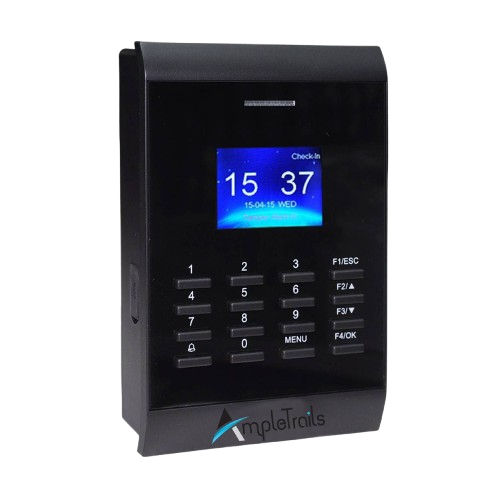
SC-405 Proximity Time Attendance & Access Control System
The SC-405 Proximity Time Attendance & Access Control System is a reliable RFID-based attendance and access management solution designed for offices, factories, schools, and commercial facilities. It supports up to 30,000 RFID card users and stores 50,000 transaction logs, making it ideal for medium to large organizations. Equipped with TCP/IP, USB Host, and RS232 communication, the SC-405 delivers fast identification, seamless integration, and dependable access control functionality.
Key Features
- Supports up to 30,000 RFID card users
- Stores up to 50,000 attendance transactions
- Fast identification speed of less than 1 second
- 32-bit Microprocessor for reliable performance
- RFID card reading distance of 8–10 cm
- TCP/IP, RS232, and USB Host communication
- Supports Push Data functionality
- Built-in access control with Wiegand 26-bit interface
- Compatible with exit readers and door accessories
- Optional support for Mifare, HID Proximity, and Anti-passback
Technical Specifications
| Specification | Details |
|---|---|
| Model | SC-405 |
| Product Type | RFID Time Attendance & Access Control System |
| User Capacity | 30,000 RFID Cards |
| Transaction Capacity | 50,000 Logs |
| Processor | 32-bit Microprocessor |
| Identification Speed | ≤ 1 Second |
| Card Reading Distance | 8 – 10 cm |
| Communication | TCP/IP, RS232, USB Host 2.0 |
| Power Supply | 12V DC, 400mA |
| Operating Temperature | 0°C to 45°C |
| Operating Humidity | 20% – 80% RH |
| Dimensions (L × W × H) | 143 × 95.5 × 39.5 mm |
| Wiegand Interface | 26-bit Input / Output |
| Access Control | 50 Time Zones, 5 Groups, 10 Time Combinations |
| Supported Exit Devices | JS500E, KR500E, Push Button, No Touch Exit |
| Push Data | Supported |
| Optional Features | Mifare, HID Proximity, Anti-passback |
Product Features
- High-capacity RFID attendance and access control system
- Fast and accurate card authentication
- Built-in access control with configurable time zones
- Multiple communication interfaces for easy deployment
- Supports Push Data for real-time attendance synchronization
- Compatible with various exit readers and door accessories
- Reliable operation for continuous daily use
Applications
- Corporate Offices
- Manufacturing Units
- Educational Institutions
- Hospitals & Healthcare Facilities
- Warehouses & Logistics Centers
- Retail Stores
- Government Buildings
- Commercial Establishments
Why Choose SC-405?
- Large user and transaction storage capacity
- Reliable RFID-based attendance and door access management
- Supports Push Data for centralized monitoring
- Flexible communication and access control options
- Easy integration with existing security infrastructure
- Ideal for medium and large organizations
Package Includes
- 1 × SC-405 RFID Time Attendance Device
- Power Adapter
- Wall Mounting Accessories
- User Manual
Share